The recent Google I/O 2026 event sent shockwaves through the tech world, particularly with the debut of the next-generation AI video generation model: Gemini Omni Flash (also known as Omni Flash). Built on the Google Flow platform, this tool not only surpasses its predecessor, Veo 3, but also poses a direct threat to other major competitors in the market.
In this article, YutoIT will perform a deep dive into the power of Gemini Omni Flash—from its breakthrough features and usage costs to a step-by-step guide on how to create hyper-realistic 4K footage.
What is Gemini Omni Flash? How does it stack up against Veo 3 and Seedance 2.0?
Launched in mid-May 2026, exactly one year after Veo 3 made its mark, Gemini Omni Flash brings significant improvements in physics and consistency.
Compared to Veo 3: Common issues like character distortion or face-merging during interactions (e.g., a scene of a man and woman chatting over coffee) have been completely resolved by Omni Flash. The AI now understands prompts with incredible precision and keeps subjects distinctly separated.
Compared to Seedance 2.0: While high-intensity action sequences might not yet rival Seedance 2.0, Omni Flash wins hands down with its ability to export video in 4K resolution—the sharpest format available in the AI world today.
video_gemini_omni_flash.mp4
(146 MB)
Google Flow Usage Costs & Credits
To use this platform, a paid account is required. Here is a breakdown of what you need to know:
Required Plans: You must upgrade to the Google Plus or Ultra plan. The Ultra plan costs approximately $95 (around 2.4 million VNĐ) per month.
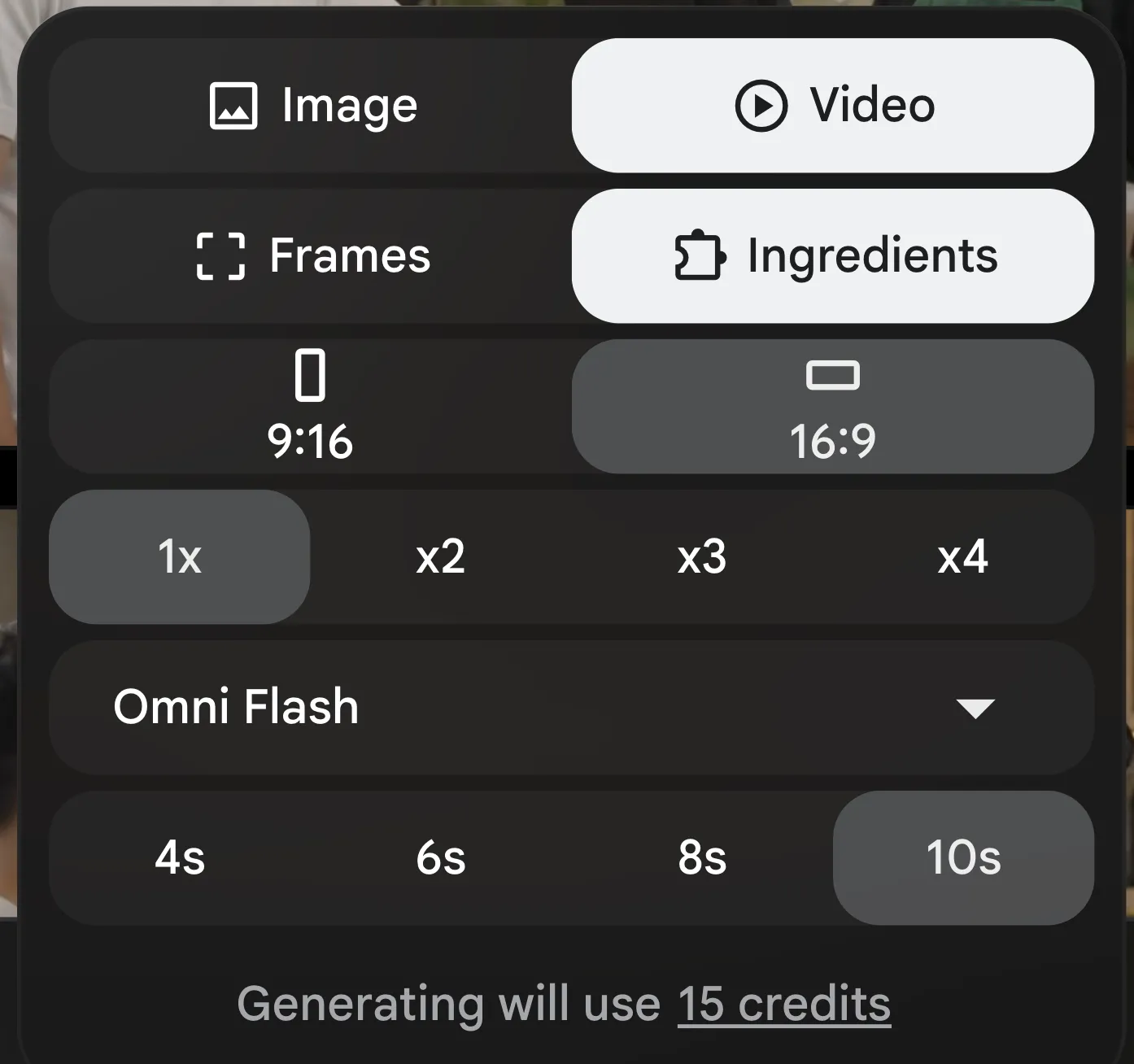
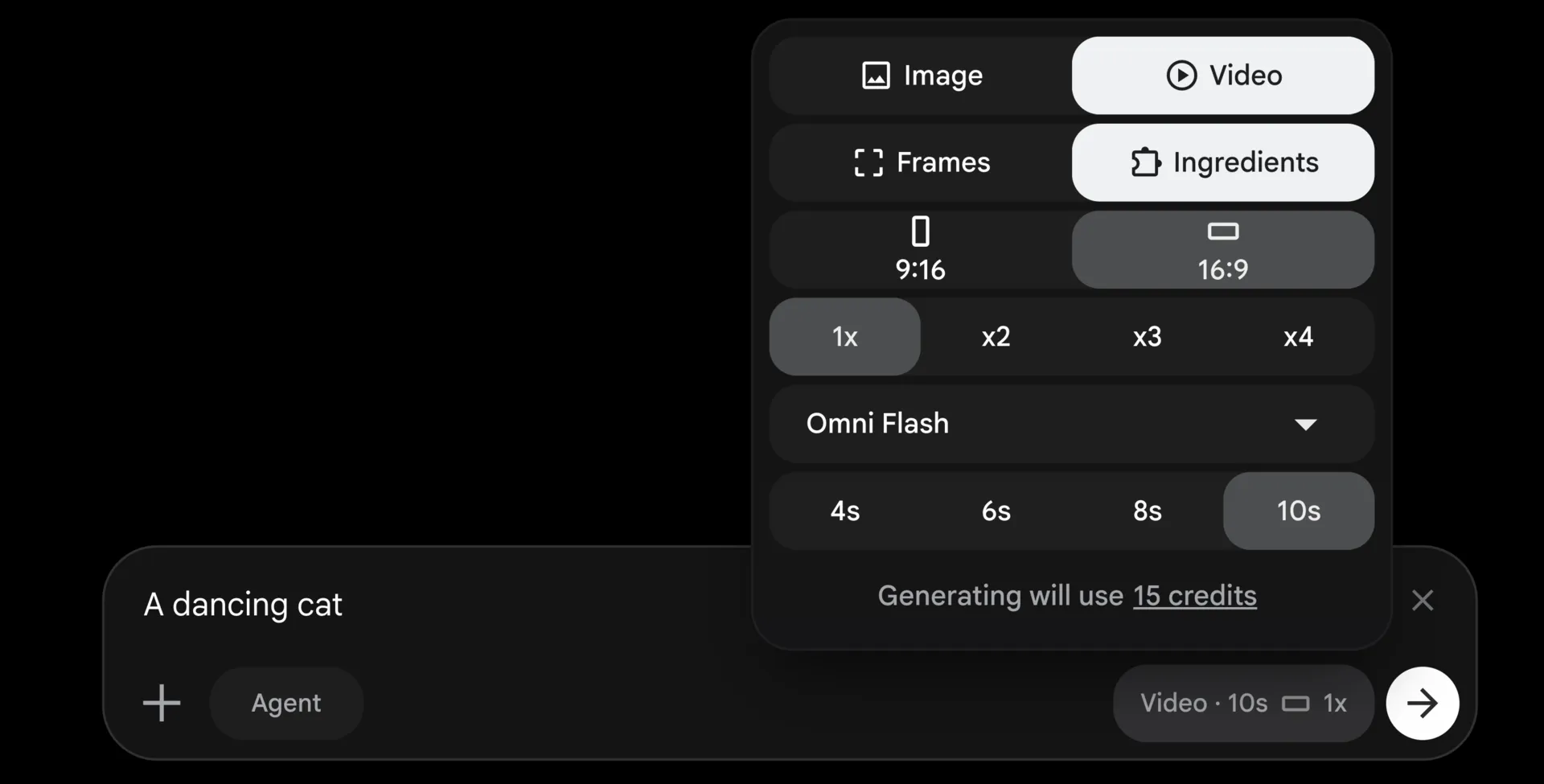
Text-to-Video Costs: Generating a 10-second video using the Omni Flash model will consume about 15 credits.
Video-to-Video Editing Costs: For example, if you upload an original 15 or 16-second video for AI editing, the system will calculate and deduct the appropriate number of credits.
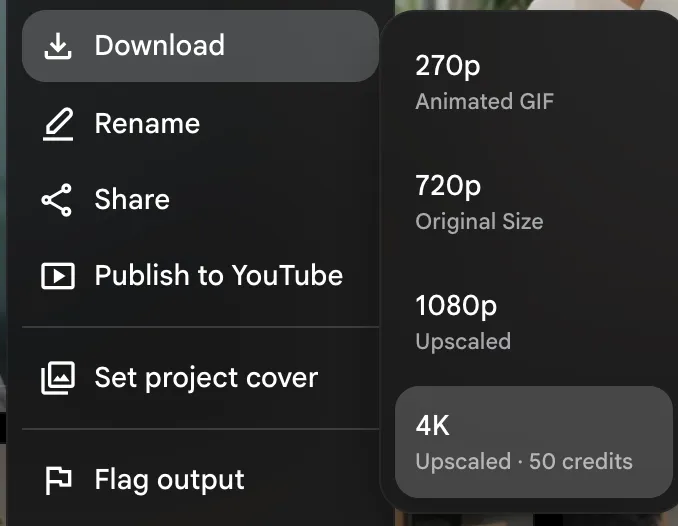
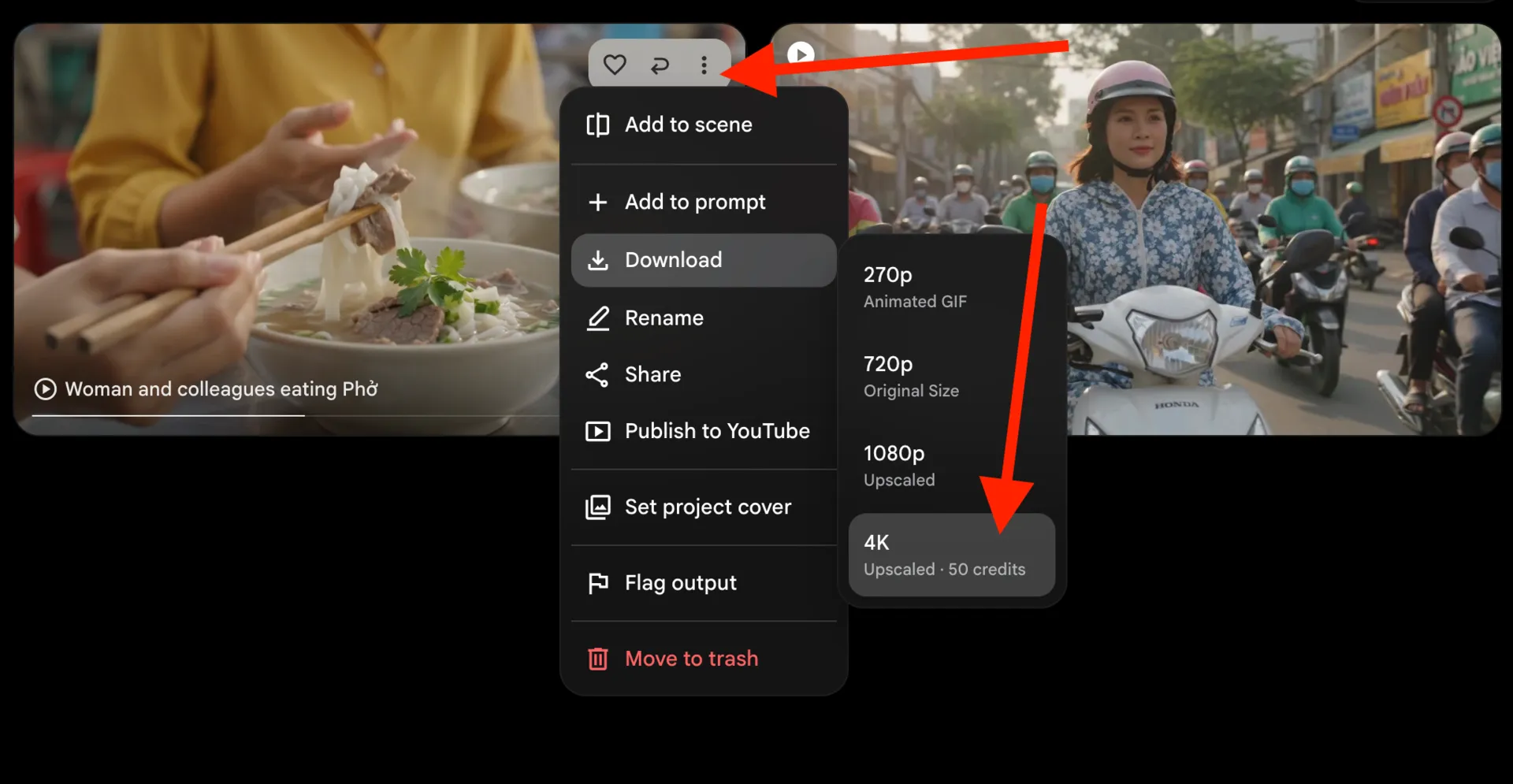
4K Export Costs: By default, generated videos are 1080p. To download a crystal-clear 4K file, you will need to pay an additional 50 credits per download.
Video generation costs
4K video download costs
Powerful Features of Gemini Omni Flash
AI Agent Mode: Automatic Storyboarding
You don't have to think of every scene yourself. Simply enable AI Agent mode and chat: "Create a 40-second video with 4 scenes showing a day in the life of an office worker in Ho Chi Minh City." The AI will automatically write the script and then generate a Storyboard (visual scenes) at zero cost for your approval. Once you click "OK," the AI proceeds to render the 4 complete videos with high character consistency.
huong_dan_omni_flash.mp4
(89.2 MB)
Create Videos with Your Own Avatar
Similar to Sora 2, this feature allows you to record a video of your own face and voice. The system then saves it as a permanent Avatar. You can use this Avatar to "star" in thousands of different videos without ever needing to step in front of a camera again.
Custom Video Editing
This is the standout feature of Omni Flash. When you upload an original video to the system (after agreeing to the privacy terms), you can:
Change Outfits and Backgrounds: Drag and drop images of a t-shirt, a hat, or even a Samurai costume and give the command. The character in the video is instantly redressed with hyper-realistic detail.
Seamlessly Add or Remove Details: Give a command like "Have this person hold a glass of craft beer" or "A red-whiskered bulbul perched on their hand," and the AI immediately integrates the object into their hand. You can also use commands like "Remove everyone in the background" to clean up any unwanted photobombers.
20260521.mp4
(48.4 MB)
How to Create AI Video and Download in 4K on Google Flow
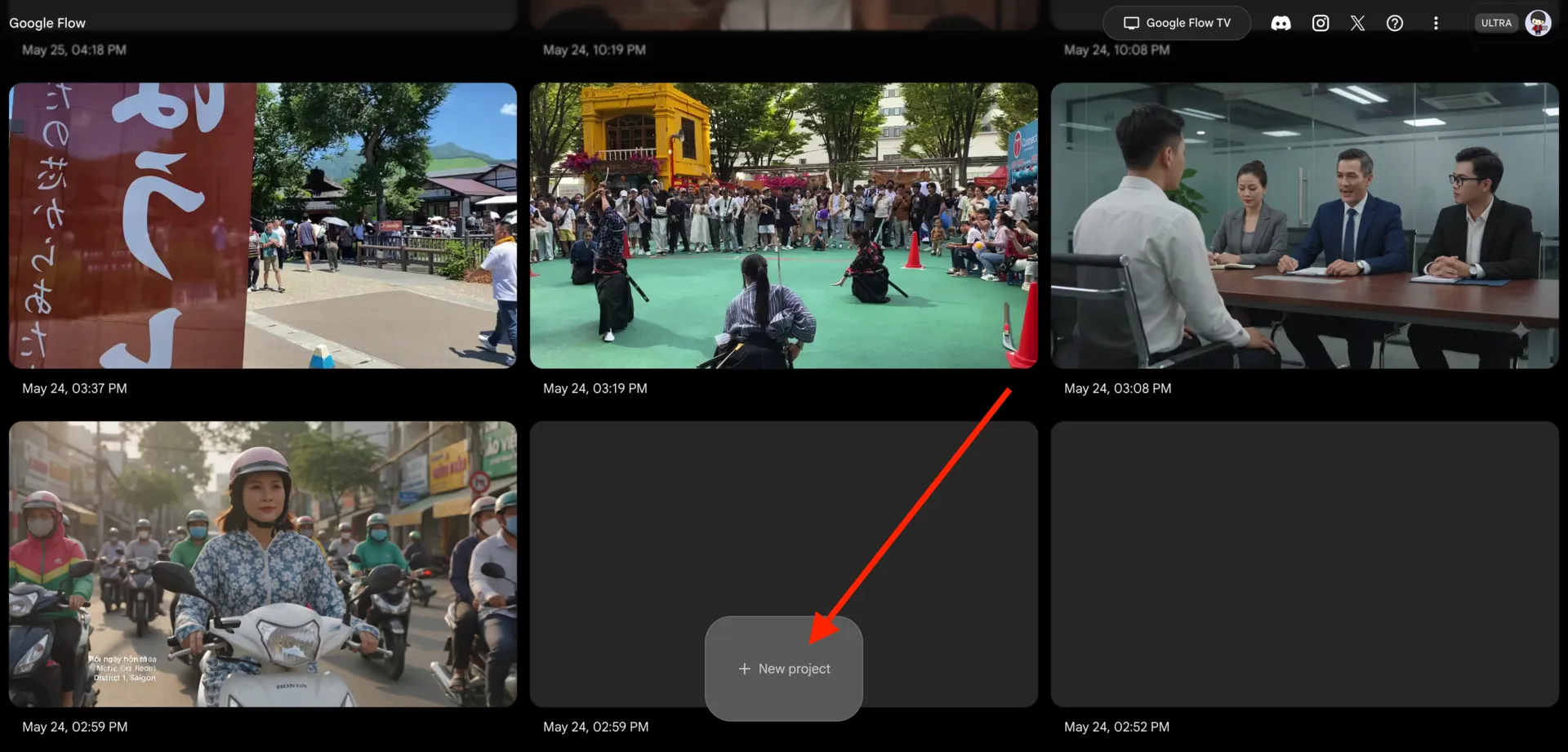
On the Flow home screen, select the "Create New Project" button at the bottom.
Step 3: Write the Video Prompt
Enter the description for your video. Pro Tip: Always include the phrase "in Vietnamese/Japanese/Korean...etc." at the end of your prompt (e.g., "A girl eating Hanoi-style Bun Cha and reviewing it in Vietnamese"). Otherwise, the system may default to English dialogue.
Set the number of videos you want to generate and the duration (maximum 10s per basic prompt). Rendering is incredibly fast, taking only about 30 seconds per video.
Step 4: View and Download
Avoid the download button at the top corner as it is only for low-quality previews. Return to the video management screen, hover over the video you like, click the three dots > Download, and accept the 50-credit charge to get the high-definition 4K version.
Final Thoughts
The ability to change settings, outfits, and even voices with Gemini Omni Flash provides content creators with infinite power. However, it also presents significant risks regarding Deepfakes.
For instance, here is a video where the outfit and dialogue are not mine at all—I never actually said these things:
Man_in_áo_dài_holding_202605212245.mp4
(19.4 MB)
Malicious actors could take your original videos, feed them into the system, and create footage of you doing or saying things you've never done. Therefore, be cautious with your personal videos on social media and use AI ethically and responsibly.
The Omni Flash model will undoubtedly receive even more optimized updates in the future (perhaps as Veo 4). Don't forget to bookmark YutoIT.com so you don't miss any in-depth tutorials on programming and AI!
I created this blog in 2024, during the rapid development of AI technology. The goal of this blog is to share basic knowledge, computer tips, and guides on using basic AI tools. Thank you for visiting my website. I hope the articles on this website will be useful for you.